Note: Users must have the authority, "Issue New Business," (Policy Processing group) to enter a new policy.
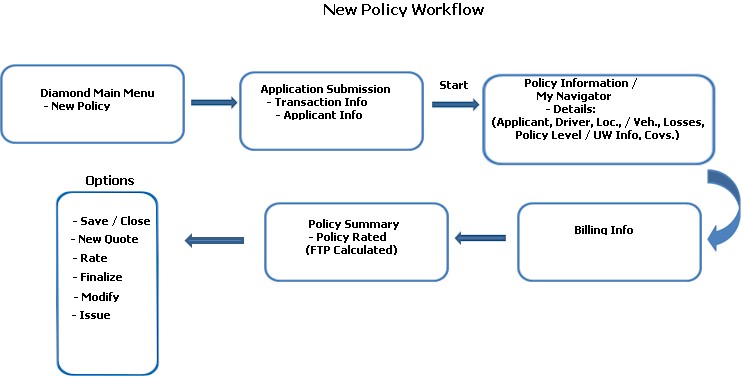
Entering a "New Policy" is different than entering a Quick Quote or a Full Quote in that a "guided" workflow (wizard) is not used. Nodes on the My Navigation Pane are placed in a logical order, and a user can move from node to node or tab to tab (located on the toolbar). In some instances, nodes will expand (for selection of other options) and collapse when the user is finished.
To enter a new policy in Diamond.
From the Diamond Main Menu, select Policies / New Policy.
Complete the Application Submission Request screen. This stores basic applicant / policy information which populates areas on the Policy Information screen. Once you have completed all required entries, click Start.
Also, if you wish to change the Effective Date of the policy, you may do so by selecting the Change link opposite the Effective field and entering the new date.
Enter information by selecting the different Tree Nodes (e.g., Driver / Applicant, Underwriting, Coverages, Billing Info) in the My Navigator pane to the left. Any fields containing an asterisk (*) next to them are required fields to rate / issue the policy.
Once all information has been entered, Rate and Issue the policy.
Depending on the Effective Date of the policy, its status is either "Active" or "Future."
Action |
Description |
| Save / Close | Policy's status does not change; remains at "P" (Pending). Retains all information entered. |
| New Quote | Changes policy's status From "P" (Pending) to "Q" (Quote). The Quote Type = New Full Quote. |
| Rate | Calculates the policy's Full Term Premium; policy's status still "P" (Pending). |
| Issue | Policy's status changes from "P" (Pending) to either "A" (Active) or "F" (Future) depending on the Effective Date of the policy. |
| Bind | Policy's status changes from "P" (Pending) to "A" (Active). Policy has a "Future Cancellation" and will cancel on the date entered on the Bind screen. |
| Deny | Policy's status changes from "P" (Pending) to "H" (History). |
If the policy has an EFT Pay Plan (Agency Portal), when a user selects the Billing Info Tab they are forced to verify the EFT Authorization and review contractual considerations with the insured for failed payments. In order to continue processing the policy, they can either Accept or Decline. If they Decline, a validation is presented: "Select an alternate Pay Plan in order to process the policy." Agents must then select a non- EFT Pay Plan in order to process the policy in Diamond. If they agree, they can then choose the Proceed button to continue with the policy.
This verification is for New Business and Endorsements only and must be configured prior to use. Additionally, the verification will not occur on Pay Plan changes that originate from the Billing Statement screen.