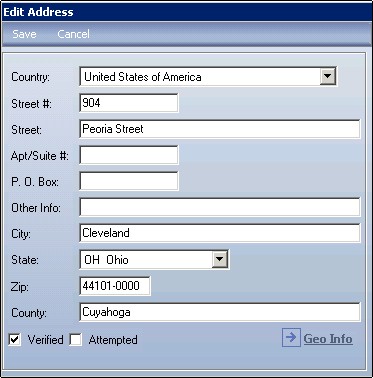
The Diamond System has functionality to use an interface for complete address validation. Using a third party vendor, Sagent ®, the Address Verification interface is partially configured on an implementation basis. Therefore, prior to its actual use, some implementation planning is required.
A pre-requisite to using address verification is establishing the system settings in the Diamond System Editor. These settings are located in the Address Verification folder and are listed in the table below:
Field Name |
Value / Function |
Options |
Default |
Enabled |
Enable the Address Verification button on the Address screens. Various sections within the Address UI in a policy have a Verified and Attempted button. |
False
= Disable Address Verification |
True = Enable Address Verification Button. When the Verified button is checked, the Vendor will verify the address. If there is no match, the Attempted button automatically defaults with a check mark. |
Enable Geo Code |
This determines if the Geo Code Lookup button is visible (active) or hidden. |
False
= Disable; hide the Geo Code button. |
True = Enable; display the Geo Code button. |
Group 1 Effective Date |
The date entered here determines which Address Verification is used for obtaining Geo Coding information. For example, if the date 07/01/2010 is entered, then transactions entered after this date will use Group 1 Tax Code information. Any transactions prior to this date will use Proxix. |
Implementation specific; user defined. |
01/01/2100 |
Vendor |
Name of the 3rd Party vendor being used for address verification. |
Sagent |
Sagent |
Zip Verification Enabled |
This setting enables or disables the Zip Code Verification. Various sections with the Address screens on a policy have both a Verified and Attempted button. |
False = Disable Zip Verification True = Enable Zip Verification. When the Verified button is checked, the Vendor will verify the zip code. If there is no match, the Attempted button automatically defaults with a check mark. The system goes through the Sagent server to verify there is a valid zip code on the billing address during a billing transaction. It does the same thing during the issuance of a policy to ensure the policy holder has a valid zip code. |
False = Disable Zip Verification |
In the Address Verification / Sagent folder, you will need to set up the 3rd Party software connection to your server containing the Sagent database. This server has a queuing mechanism that accommodates simultaneous requests; it runs continuously.
Field Name |
Value / Function |
Options |
Default |
Host |
This is the machine name / server. |
Implementation specific; user defined. |
Implementation specific. |
Number of Retries |
This setting is used and invoked during End of Day Processing. This is used to establish the number of times the code will retry connecting to the Sagent Service. |
Implementation specific; user defined. |
5 |
Port |
Number used by Sagent. |
4660; do not change. |
4660; do not change. |
Retry Delay |
This setting is used and invoked during End of Day Processing. This sets the delay in milliseconds between retries if a connection cannot be made to Sagent. |
Implementation specific; user defined. |
1000 |
Address verification can be used any time a user adds or changes an address field on a new business or "Pending" transaction in the Diamond System using any of the following screens:
Client Information Screen: Client address
Policy Control Screen: Edit Address screen for policyholder
Policy Control Screen: Billing Name / Address screen for payor
Policy Detail Screen - Applicant Information: Prior Address screen
Policy Detail Screen - Risk Location: Dwelling, Vehicle, Watercraft, Personal Liability (Umbrella)
Policy Detail Screen - Additional Interest
Note: The address verification interface is interactive, and it is not restricted by the use of required data.
Selecting the Verify button on the Address screen sends a query to the Sagent database. The following information is sent:
House Number
Street Name
Apartment Number
PO Box
Other Info
City
State Abbreviation
Country Abbreviation
County
Zip
Longitude
Latitude
The user receives an immediate response for the request, which could be any of the following: No Match, Partial Match, Exact Match or Sagent Validation Service failure.
If an address cannot be found that matches the address entered, the system returns an address validation message: "No matching addresses found." This includes when a house number has been entered outside of the street number range.
Click the OK button.
The "Attempted" check box on the Address screen contains a check mark.
If there is a partial match OR the system returns multiple matches, a Partial Address Match screen is displayed. Users are allowed to select one (1) that is listed, or they have the option to exit the screen if an accurate address is still not returned. When the user rejects or cancels out of the screen, the Address screen remains unchanged with the address entered.
If the user selects one (1) of the addresses, both the "Verified" and the "Attempted" check boxes contain a check mark on the Address screen.
If the user rejects all of the addresses presented, only the "Attempted" check box contains a check mark.
When an exact match is found, the Address screen is updated with the data that Sagent returns for that address. When there is an address entered containing a street, city and state, but no zip code or county, Sagent will look up the correct zip and county, using the city and state fields. It returns the ten (10) digit zip code, county, latitude and longitude for the address entered.
Both the "Verified" and the "Attempted" check boxes contain a check mark on the Address screen.
If the Sagent service is not currently running and a user attempts the address verification, the system returns the following message: "Failed to connect to the Sagent validation service." Click OK to exit the validation message.